Gmail Quota Troubleshooting for Outreach Teams
Fix Gmail quota and deliverability: understand limits, sender reputation, quick fixes, warm-up practices, and how to scale using multiple mailboxes.

When running email campaigns, Gmail's daily sending limits can disrupt your outreach. Free Gmail accounts allow 500 emails/day, while Workspace accounts allow 2,000. However, Gmail's spam filters and sender reputation often restrict users before hitting these limits. Common issues include "quota exceeded" errors or emails landing in spam instead of inboxes.
Key Points to Avoid Gmail Quota Issues:
- Understand Sending Limits: Free accounts cap at 500 emails/day; Workspace accounts at 2,000.
- Sender Reputation Matters: High bounce rates (over 2.8%) or spam complaints (above 0.1%) can trigger restrictions.
- Rolling 24-Hour Window: Limits reset 24 hours after hitting the cap, not at midnight.
- Fixes for Quota Problems: Wait 1–24 hours for restrictions to lift, spread emails over time, or use multiple mailboxes.
- Long-Term Strategies: Authenticate emails (SPF, DKIM, DMARC), clean email lists, and warm up new accounts gradually.
For scaling outreach, tools like Icemail.ai automate mailbox setup, DNS configurations, and warmups, saving time and ensuring better deliverability. By following these strategies, you can avoid Gmail's limits and keep your campaigns running smoothly.
Gmail Sending Limits and Quota Troubleshooting Guide
Gmail Sending Limits and How Reputation Affects Them
Gmail's Official Daily Sending Limits
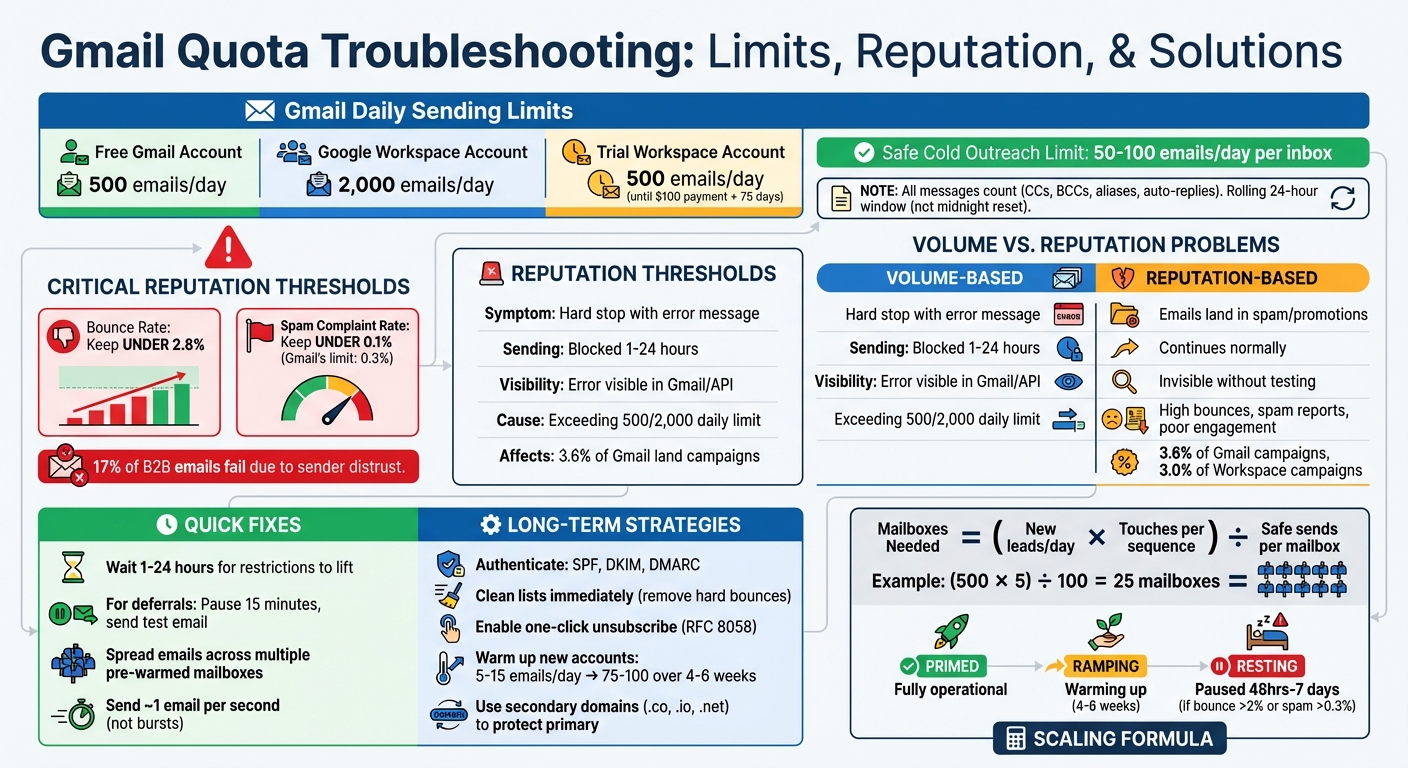
Gmail sets daily caps on the number of emails you can send, but these limits aren't as straightforward as they seem. For personal accounts, the limit is 500 emails per day, while paid Workspace accounts can send up to 2,000 emails daily. However, trial Workspace accounts are restricted to 500 emails until you make a $100 payment and wait 75 days.
It’s important to note that Gmail counts every message toward these limits - including CCs, BCCs, alias emails, and even auto-replies - all within a rolling 24-hour period.
Here’s the catch: Gmail's spam filters often restrict users long before they reach these official caps. As MailReach explains, "The official sending limits are system caps, not inbox‐safe limits. Gmail's filtering kicks in long before you hit them". For instance, a new Workspace account could face restrictions after sending just 10–15 emails if the engagement is poor or the recipient list is low quality.
These limits are just one piece of the puzzle. Gmail also uses sender reputation to dynamically adjust how many emails you can safely send.
How Sender Reputation Triggers Restrictions
While understanding Gmail's sending limits is important, maintaining a strong sender reputation is just as critical for successful email outreach.
Gmail evaluates not only how many emails you send but also the quality of those emails. Positive signals - like recipients opening your emails, replying, or moving them from spam to their inbox - help improve your reputation. On the other hand, negative actions, such as recipients deleting emails without opening them, marking them as spam, or high bounce rates, can hurt your standing. Google expects bulk senders to keep spam complaint rates below 0.3%, though aiming for under 0.1% is considered best practice.
Bounce rates are another key factor. If more than 2.8% of your emails bounce, Gmail may flag you as a spammer. Sudden spikes in email volume - like jumping from 50 to 500 emails overnight - can trigger greylisting, where Gmail temporarily blocks your messages to slow you down. Sending nearly 5,000 emails to personal Gmail accounts within a day can even result in permanent classification as a "bulk sender", leading to stricter authentication requirements.
"Instead of rigid numbers, Gmail employs a dynamic system that considers a multitude of factors, with sender reputation, engagement metrics, and technical compliance playing far more significant roles than raw sending volume" - Michael Ko, CEO of Suped
For cold outreach campaigns, this means even a well-prepared Workspace account is typically safe for sending only 50–100 emails per day - far below the official 2,000-email limit.
Gmail sending limits in Google Workspace
How to Diagnose Your Gmail Quota Problem
Figuring out whether your Gmail issue is tied to volume or reputation is crucial since the two problems look very different and require distinct solutions.
Volume-based restrictions are straightforward - Gmail completely stops you from sending emails and displays an error message. Reputation-based problems are trickier. Your emails still go out, but instead of landing in the inbox, they end up in spam or the Promotions tab. Understanding this difference is key to addressing your email delivery challenges effectively.
Problems from Sending Too Many Emails
If you exceed Gmail’s daily sending limits, the system will block you and display error messages like "You have reached a limit for sending mail," "You reached a Gmail sending limit," or "You exceeded the maximum recipients". For those using the Gmail API, the error will appear as "429: User-rate limit exceeded".
Once you hit these limits, Gmail enforces a sending block for anywhere between 1 to 24 hours. During this time, you can still receive emails, but sending is completely disabled until the restriction is lifted.
While volume-related issues are easy to identify due to these error messages, reputation problems are subtler and can quietly impact your deliverability.
Problems from Poor Sender Reputation
Reputation issues are more elusive because Gmail doesn’t give you a direct warning. Your emails still send, but instead of reaching the inbox, they’re filtered into spam or the Promotions folder. This can happen even if you’re well below Gmail’s official sending limits of 2,000 emails per day for Workspace accounts or 500 for free accounts. In fact, data shows that 3.6% of Gmail campaigns and 3.0% of Workspace campaigns encounter restrictions caused by reputation issues rather than volume limits.
Signs of a poor sender reputation include low open rates, bounce rates higher than 2.8%, and spam complaints - even if you’re sending at low volumes. To investigate further, use Google Postmaster Tools to check your domain’s spam rate. If it exceeds 0.1%, your reputation needs attention. Another way to test is by sending emails to a seed list of test inboxes. If those emails go to spam while you’re still able to send, the problem is reputation-based rather than volume-related.
| Type | Volume-Based | Reputation-Based |
|---|---|---|
| Primary Symptom | Hard stop with error message | Emails land in Spam or Promotions |
| Sending Ability | Blocked for 1–24 hours | Sending continues normally |
| Visibility | Visible in Gmail UI or API logs | Invisible without third-party testing |
| Primary Cause | Exceeding 2,000 (Workspace) or 500 (Free) sends | High bounces, spam reports, or poor engagement |
How to Fix Gmail Quota Issues
To address Gmail quota problems, you first need to determine the root cause - whether it’s related to sending volume or sender reputation. Once identified, you can apply targeted solutions. A mix of immediate actions and ongoing strategies is often the best way to restore functionality and maintain reliable email deliverability.
Quick Fixes After Hitting Quota Limits
If Gmail blocks your sending and displays an error message, the best course of action is to wait it out. Gmail typically lifts restrictions within 1 to 24 hours. During this time, you’ll still be able to receive emails, but sending will be temporarily disabled.
For temporary deferrals (delayed message delivery), pause your sending for 15 minutes. Once the pause is over, send a single test email. If it goes through successfully, you can resume sending but at a reduced volume.
If you need to send emails urgently, consider distributing your traffic across multiple pre-warmed mailboxes. By spreading the workload, you avoid overloading a single inbox, which can help prevent further issues.
These quick fixes are important for immediate recovery, but they should be paired with long-term strategies to ensure smoother operations in the future.
Long-Term Methods to Maintain Deliverability
While quick fixes help in the moment, long-term measures are essential for avoiding future disruptions.
Start by strengthening your sender reputation with SPF, DKIM, and DMARC protocols. These email authentication tools prove to Gmail that your emails are legitimate and not spoofed, which builds trust with their system.
Another key practice is maintaining list hygiene. Remove hard bounces immediately, as a bounce rate above 3% can lead to reputation-based filtering, even if your overall volume is low. Statistics show that around 17% of B2B emails fail to reach any inbox due to sender distrust.
Keep your spam complaint rate below 0.1%. Gmail’s threshold is 0.3%, and exceeding it can lead to automatic blocks. To minimize complaints, enable a one-click unsubscribe option using RFC 8058-compliant headers. This makes it easier for recipients to opt out without marking your email as spam.
Avoid sending large email bursts. Instead, spread out your emails throughout the day, sending roughly one per second. This mimics human behavior and helps you stay under Gmail’s radar. Although Google Workspace allows up to 2,000 emails daily, the safer limit for cold outreach is typically 100–150 emails per day per inbox.
Using Multiple Mailboxes to Scale Your Outreach
If your email volume exceeds the capacity of a single mailbox, scaling your outreach across multiple accounts can help.
For example, instead of sending 1,000 emails from one inbox, distribute the load by sending 200 emails from five different accounts. This keeps each mailbox well below its quota and preserves deliverability.
To protect your primary domain, use secondary domains like .co, .io, or .net. This way, if one domain faces restrictions, your main business communications remain unaffected.
Here’s a formula to calculate how many mailboxes you need:
(New leads per day × Touches per sequence) ÷ Safe sends per mailbox.
For instance, if you want to reach 500 new leads daily with a 5-touch sequence and each inbox handles 100 safe sends, you’ll need (500 × 5) ÷ 100 = 25 mailboxes.
When setting up new mailboxes, warm them up gradually. Start by sending 5–15 emails daily and scale up to 75–100 over 4–6 weeks. This "Crawl, Walk, Jog, Run" approach ensures the accounts build trust with Gmail over time.
Organize your mailboxes into three categories:
- Primed: Fully operational accounts ready for maximum volume.
- Ramping: New or recovering accounts in the process of warming up.
- Resting: Accounts temporarily paused due to high bounce or spam rates.
If an inbox hits a 2% bounce rate or exceeds a 0.3% spam rate, move it to the Resting pool for 48 hours to 7 days. This cooldown period prevents a single problematic inbox from affecting the overall performance of your email infrastructure.
Automating Your Email Setup for High-Volume Campaigns
Managing multiple mailboxes for outreach can quickly become a time sink, especially when you're stuck manually configuring DNS settings, authentication protocols, and warm-up processes. These repetitive tasks eat into valuable hours that could be better spent scaling your campaigns. That’s where automated mailbox management steps in. By leveraging automation tools, you can streamline these setups, focus on Gmail quotas, and expand your outreach without worrying about deliverability issues.
Using Icemail.ai for Automated Mailbox Management
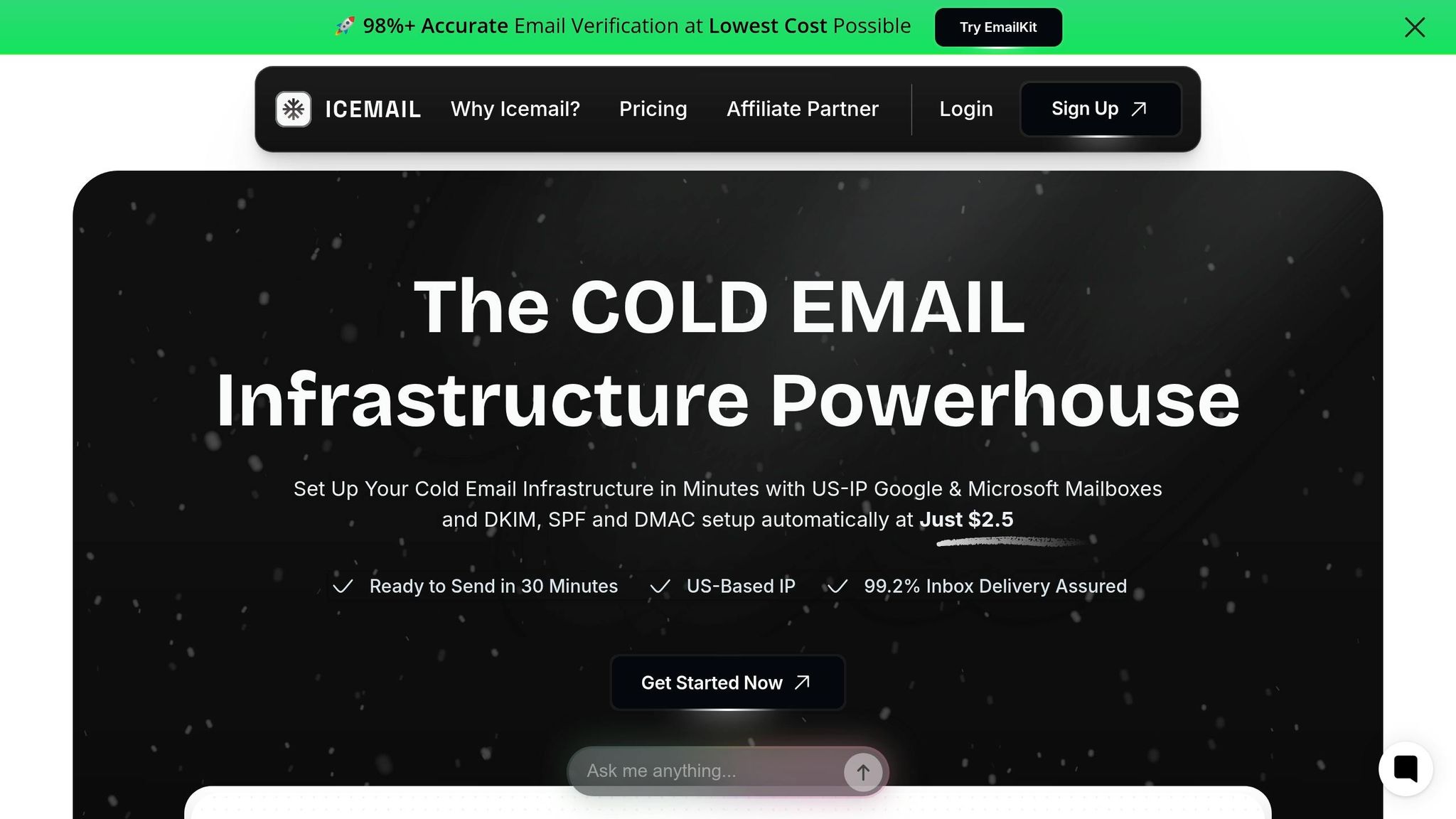
Icemail.ai makes setting up new mailboxes a breeze - completing the process in roughly 10 minutes. It takes care of all the technical configurations, such as DKIM, SPF, and DMARC records, so you don’t have to manually tweak DNS settings for each domain.
At just $2.50 per mailbox per month, Icemail.ai offers dedicated US/EU IPs, ensuring a 99.2% inbox placement rate. Plus, they provide unlimited free mailbox replacements, which means you can scale your operations without interruptions.
"Icemail.ai has transformed how I manage my email infrastructure. The automated setup for Google Workspace accounts, including DKIM, SPF, and DMARC configuration, saved me hours of work."
– Suprava Sabat, @AcquisitionX
The platform also includes AI-powered autofill for bulk provisioning, speeding up the process by automatically populating configuration fields. Need to switch providers? The 1-click export feature ensures you can move mailboxes seamlessly, avoiding vendor lock-in. For teams managing hundreds of mailboxes, this flexibility is a game-changer, making it easier to reallocate accounts across various outreach tools.
Icemail.ai Compared to Other Mailbox Providers
Icemail.ai doesn’t just simplify mailbox management - it ensures consistent deliverability, which is crucial for avoiding Gmail quota issues. While most providers charge between $3.90 and $5.00 per mailbox per month and often add fees for replacements, Icemail.ai offers a more affordable and efficient alternative. It combines lower pricing with faster setup times and enhanced infrastructure, backed by an official partnership that boosts deliverability.
| Feature | Icemail.ai | Other Platforms (e.g., Zapmail, Mailforge) |
|---|---|---|
| Price | $2.50/month | $3.90 to $5.00/month |
| Setup Time | ~10 minutes | 30+ minutes |
| Mailbox Replacements | Unlimited free | Additional cost per replacement |
| IP Quality | Dedicated US/EU IPs | Often shared or unspecified |
| DNS Automation | Full DKIM/SPF/DMARC setup | Manual or partial automation |
Icemail.ai's pay-as-you-go model means no locked subscription plans, making it ideal for teams that need to scale campaigns dynamically. It’s no wonder industry experts call it a "Cold Email Infrastructure Powerhouse", capable of handling bulk provisioning while eliminating the usual manual workload.
Summary: Main Points for Gmail Quota Troubleshooting
Gmail's sending limits are strict: 500 emails per day for personal accounts and 2,000 for Google Workspace accounts. However, your actual sending capacity also depends heavily on your sender reputation. To avoid problems, aim to keep spam rates below 0.1% and bounce rates under 2.8%, as Gmail may block you based on these metrics even before you reach the official limits.
If you're troubleshooting quota issues, pay attention to SMTP error codes like "550 5.4.5 Daily quota exceeded", which confirm volume-based blocks. Gmail uses a rolling 24-hour window for its limits, meaning the clock resets 24 hours after each email is sent - not at midnight. Additionally, misconfigured SPF, DKIM, and DMARC records can trigger soft restrictions, so verify these settings using tools like Google Postmaster Tools.
To manage quota problems effectively, use both short-term and long-term strategies. For immediate relief, spread your emails throughout the day - for example, sending 125 emails every few hours instead of 500 all at once - to mimic natural usage patterns. For larger campaigns, distribute email volume across multiple accounts or domains to stay within Gmail's limits while maintaining good deliverability.
For scaling without manual effort, automation tools like Icemail.ai can help. At just $2 per mailbox per month, it offers quick setup and automated DNS configuration, making it both faster and more cost-effective than traditional solutions.
FAQs
Why am I getting blocked before Gmail’s 500/2,000 daily limit?
Gmail can block your emails even before you hit its official daily limits - 500 for personal accounts and 2,000 for Workspace accounts. This often happens due to factors like exceeding recipient caps (100 per email), sudden spikes in email volume, or activity resembling spam. To avoid this, gradually increase your email activity ("warm up" your account), distribute emails across multiple accounts, and steer clear of sending identical messages.
For a faster and more reliable solution, Icemail.ai provides premium cold email infrastructure, ensuring better deliverability and quick setup to keep your campaigns running smoothly.
How can I tell if it’s a quota block or a reputation issue?
When you encounter a quota block, it means you've hit your sending or storage limits. This is often flagged by errors like "over quota" or "quota exceeded." These issues are usually temporary and can be resolved by waiting for limits to reset or by freeing up space.
On the other hand, reputation issues are tied to things like spam reports, blacklisting, or sender warnings. These are more serious and can impact how your messages are delivered.
To figure out which one you're dealing with, pay attention to the error messages. Quota issues will specifically reference limits, while reputation problems will mention spam or sender reputation concerns.
How many mailboxes do I need to scale outreach safely?
To determine how many mailboxes you need, consider your campaign volume, daily email goals, and platform restrictions. For instance, if you plan to send 900 emails daily, it's best to spread the load across multiple mailboxes and domains. Aim to keep each mailbox sending no more than 50–100 emails per day to protect your deliverability rates. Tools like Icemail.ai can simplify this process, offering quick setups and scalable solutions to manage multiple mailboxes and domains while safeguarding your email reputation.